Creating your first scorecard...
In this section, we'll walk through the steps for setting up your first scorecard. The basic steps are to create the new card, select the course and tees, add players to the card, and add your games/wagers. We'll walk through each step below.

From your "Home" screen tap on "New Game".

You may select from the list of recently played courses or search for any course in the USGA database.

We typed in "bandon" and you can see the search result. We're going to select Old Macdonald for our example.

Now you select tees you are going to play. You can also choose to override the automatically calculated course handicap if you like - more on that later. We are going to play the green tees today so check that selection and tap "Save".

Next we'll add players to our scorecard. Tap the "+" symbol next to "Players" and we'll be taken to the add players screen.

This is where we'll add the other members of our group. Notice you can select from recent playing partner as well as search for anyone in the Marker system. If you are adding a new Marker user, tap "Invite player". We'll add Harry, Greg and Joe now.

Next we are going to invite another player to make a fivesome. Enter the phone number of the person you wish to add, if they are already a Marker user, their info will be populated automatically, if not, they will be sent an SMS message to join the card.

We entered Paul's phone number here. He was already a Marker user so the rest of his information populated automatically. Tap save and he will be added to the scorecard.

Now we can start to add games. Tap the "+" symbol next to "Games" and you'll see the game selection screen.

For this example we are going to add three games; Stroke Play, Match Play, and Skins. We'll start by tapping the "Stroke Play" button.

Tap the "show advanced" to see all the settings available for the game. These setting are common to all the games in Marker. In this case we're going to stick with the defaults and just do simple net stroke play.

Marker also keeps track of your wagers. You can set a buy-in amount and specific payouts. Here we'll payout first and second places. Tap save and we'll move on to Match Play.

Here you can select the competitors and stipulations for the match. In this case we're goign to have Bart and Harry v Greg and Joe. Notice we left Paul out of this match as we just wanted 2 v 2. We'll add a wager to this match as well.

We'll set the match wager at $5 with automatic 2-down presses. We'll also stipulate the format of 1 best net ball (you can choose any combination of net and/or gross balls). Tap save and we're on to Skins.

For the skins game, we'll implement some additional advanced settings. We select "Use half strokes". This ensures a gross score is not cut or tied by a net score. Also, we prohibit strokes to be granted on par 3's.
A few more options for skins:
-
Carryover on ties
-
Validate skins
-
Pool Buy-in or Per Skin setting
We'll make the buy-in $20 for a total pot of $100. Tap "Save" and we're ready to start keeping score!

Tap "View Scorecard" to get started scoring. This next screen is where you'll spend the majority of your time in Marker.

The first view we get is for our Match. Notice the tabs along the top of the card - there is one for each game view. Here we can see the players initials and how many total strokes they get. Also dots on each hole where they get a stroke (remember we are stroking off the low handicap in the match).

Now we'll tap the "Skins" tab and have a look at this game view. Again, you can see all the players initials and the number of strokes they are getting for the skins game. Remember we set this game for half strokes so you can see that on the designated holes.

Finally - we'll tap on the "Net Stroke Play" tab where we get a similar overview of players and their designated strokes. Now we'll move on to entering some scores to see how the games are updated.

As we start to enter scores, you can see the summary for each game in the right column. In this case, since we have auto 2-down presses, Side A is down one/up one since they lost the first two holes, but won the third.

If we tap the tab for the skins game, we can see the Joe won a skin on the first hole, the second hole was tied (carried over) and Bart won the third hole (two skins).
Lastly, we'll tap on the stroke play game to see where everyone stands after three. In the green bar along the top you can see where each player stands "to par". (You can see the score "to par" in each individual score as well.

You may have noticed the trophy icon in the upper right of the screen. If you tap on that you'll be taken to the leaderboard screen. First we can see the Match standing. Side A is down one, up one.
If we scroll down, we can see the standings of the skins game. Joe has one skin and Bart has two (due to the carryover).

Continuing to scroll down, we see the Stroke Play leaderboard with projected winnings. In this view you can tap on any player to see their full hole-by-hole score. (This is more interesting when we talk about events where there are multiple groups playing.). Let's finish the round and have a look at the "Settling Up" feature.
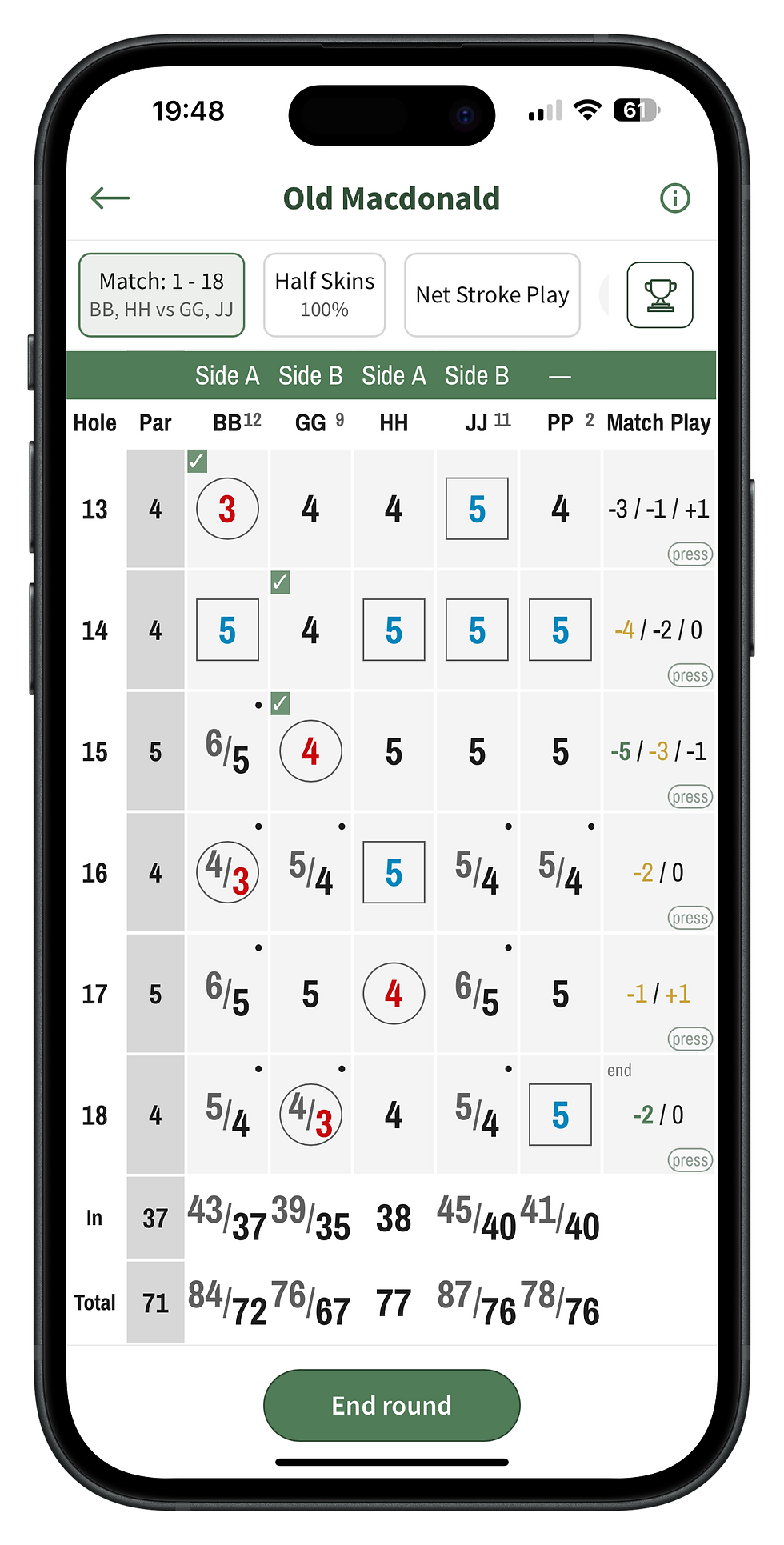
Before we get into the settling up, let's have a look at the completed games from each view. Here is the Match view.

Here is the view of the completed skins card.

Lastly, the net stroke play view. You can see the individual net results to par in the green bar at the top.

The completed Match leaderboard show that Side A lost the first bet 5&3, the second one 2-up and tied the last.

The skins leaderboard shows that summary as well. You can tap the "Show hole-by-hole" button to see details on each hole.

Finally we have the stroke play results. Looks like Greg has been doing a little handicap maintenance. Tapping on any of the players will expand their individaul hole-by-hole scores.

If we expand the "Squaring Up? section of the leaderboard, we see what everyone is due based on the all the bets over all the games. On additional feature of Marker is that you can post your score to the USGA directly from the app.
© 2026 by Marker Golf.

Create your first scorecard.

